

CONTENTS
For the last few years, my daily driver monitor has been an Acer Predator XB273U that I picked up from Micro Center around the tail end of the COVID-19 era. Despite the "low" 1080p resolution, it was an appealing display to me because of its high maximum refresh rate of 270Hz and support for NVIDIA G-SYNC and AMD FreeSync.
I love updating firmware on things, especially custom firmware. It scratches some weird itch, much in the same way it probably felt for middle-aged dads in the 1940s to put new tubes in their radios. Step one in updating firmware is figuring out the firmware you're running, and whether it's even possible to complete an update on your own. In this case, it was not (Acer offered no firmware download for this monitor), but I learned a bit about some other menus on the XB273U that are worth documenting and sharing.
The only place the firmware version shows up is within a hidden factory menu, and Acer doesn't document how to reach it on the GX.
Today, we'll be stepping through the method that worked, which comes from Acer's own Lifecycle Extension Guide for the Nitro VG271U P, a monitor with the same button layout.
Here are the details of my display:
Monitor: Acer Predator XB273U GX
Scaler: Realtek RTD2718Q
Panel: AUO M270DAN08.0
Firmware: 0.08, built 2021-08-06
Preparing
First, we make sure the PC is on and connected to the monitor over DisplayPort or HDMI. In my case, DisplayPort is used. On the back of the monitor there are a few buttons. Starting from the top one, the power button, the controls run in this order:
- Power
- Function Key 1
- Function Key 2
- Function Key 3
- Joystick
Entering the Factory Menu
- Press the Power button to turn off the monitor.
- Press and hold Function Key 3 (the one just above the joystick).
- While still holding Function Key 3, tap the Power button. Release Function Key 3 once the display is back on.
- Depress the Joystick to open the menu. A small letter
Fshould now appear at the top left of the menu. - Press Function Key 1, or press up on the joystick.
If all went well, you'll be looking at the factory menu.
Reading the factory menu
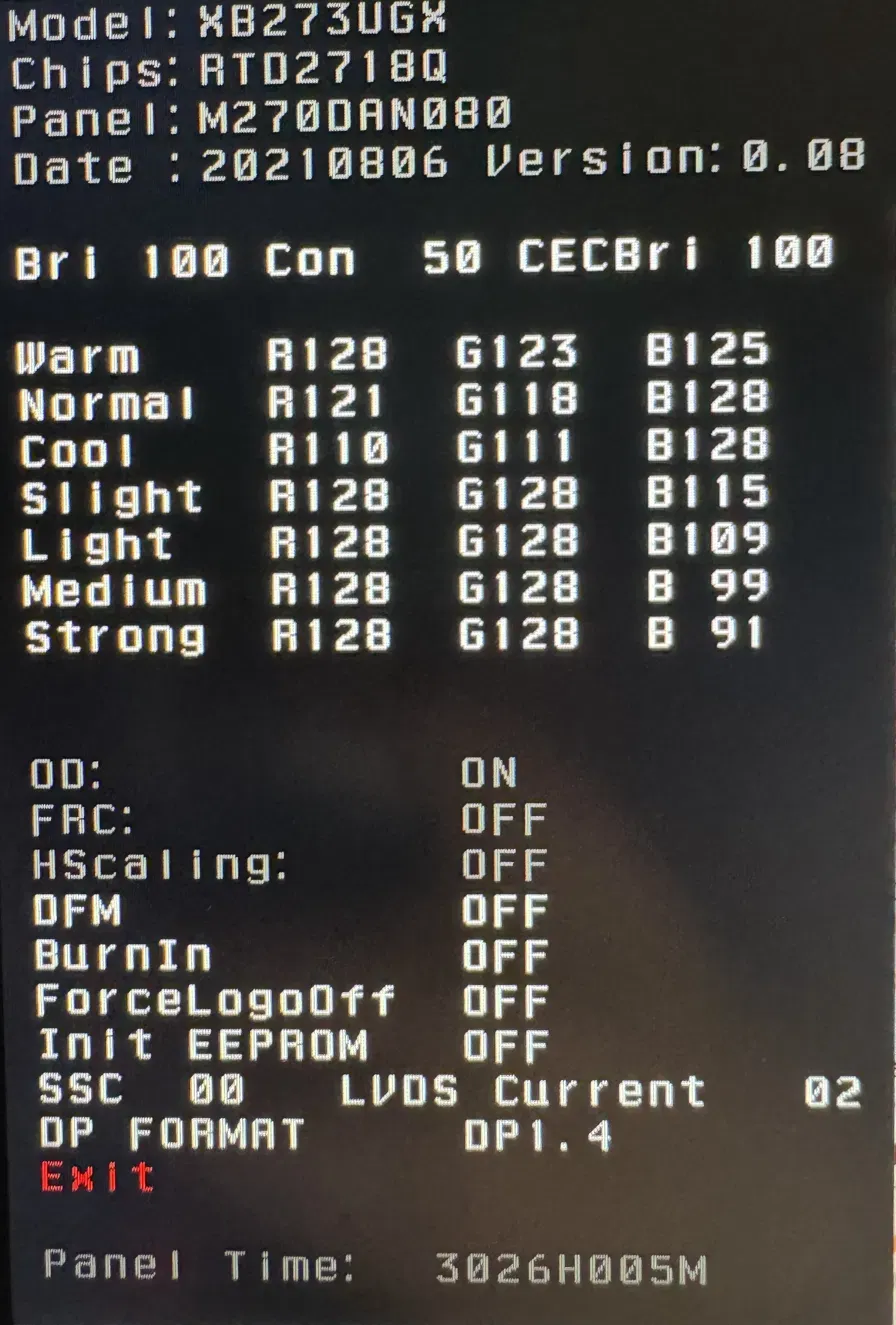
Here is what the factory menu looks like on my monitor:
Model: XB273UGX
Chips: RTD2718Q
Panel: M270DAN080
Date : 20210806 Version: 0.08

Bri 100 Con  50 CECBri 100

Warm     R128  G123  B125
Normal   R121  G118  B128
Cool     R110  G111  B128
Slight   R128  G128  B115
Light    R128  G128  B109
Medium   R128  G128  B 99
Strong   R128  G128  B 91

OD:            ON
FRC:           OFF
HScaling:      OFF
DFM            OFF
BurnIn         OFF
ForceLogoOff   OFF
Init EEPROM    OFF
SSC  00   LVDS Current  02
DP FORMAT      DP1.4
Exit

Panel Time:  3026H005M
The values appear to be as follows:
- My display runs firmware
0.08, built on August 6, 2021. I'd be curious to see what others have. Chipsis the scaler (a Realtek RTD2718Q).- The LCD
Panelis an AU Optronics M270DAN080. Warm,Normal, andCoolare the RGB gains for the Color Temp presets, calibrated per unit.SlightthroughStrongmatch the four Blue Light levels.ODindicates whether overdrive is on or off. It is grayed out and not modifiable from this menu.FRCandHScalingare frame rate control (dithering) and horizontal scaling. These too are grayed out and not modifiable from this menu.ForceLogoOffsuppresses the Acer Predator logo that appears each time the monitor is powered on.BurnInis a factory aging mode that cycles solid colors.Init EEPROMresets the stored settings.SSCandLVDS Currentare signal settings for the panel link.DP FORMATis the DisplayPort version the monitor reports to the PC.Panel Timeis backlight hours.
I haven't identified DFM or CECBri.
Playing it safe
Before changing anything, it's a good idea to take a photo of the screen. The RGB gains are calibrated per unit, and Init EEPROM would likely erase them. I didn't mess with this on my monitor. I'd leave Init EEPROM, BurnIn, SSC, and LVDS Current alone.
When finished, select Exit, then turn the monitor off and on to return to normal mode.
I hope this is useful for other Acer Predator XB273U owners. What I found on the web was written for other models, which is what motivated me to share this. Thanks for reading!


